
Integrations
·
Guide
4 Minutes

Sending Promotional SMS Campaigns in CellPoint Pro
Use CellPoint Pro to send promotional text messages to your customers and review detailed logs of all messages sent through the system.
Step 1: Open the SMS Promotion Module
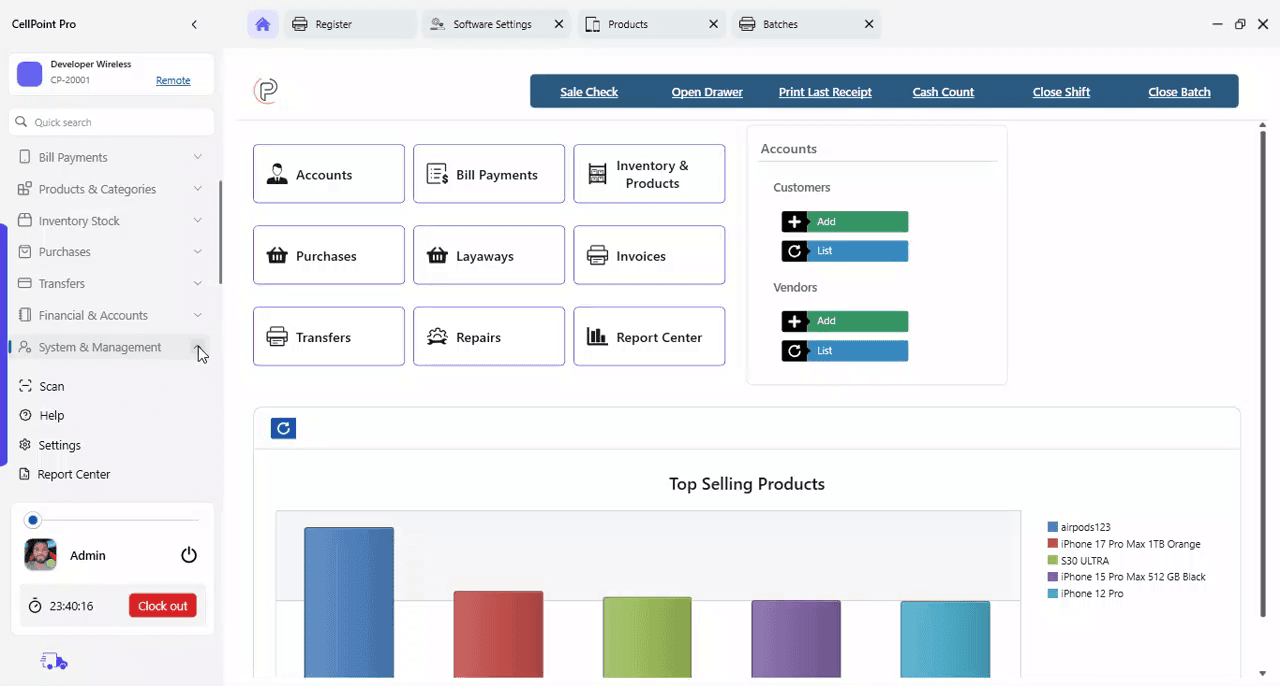
From the left-side panel menu, select System and Management.
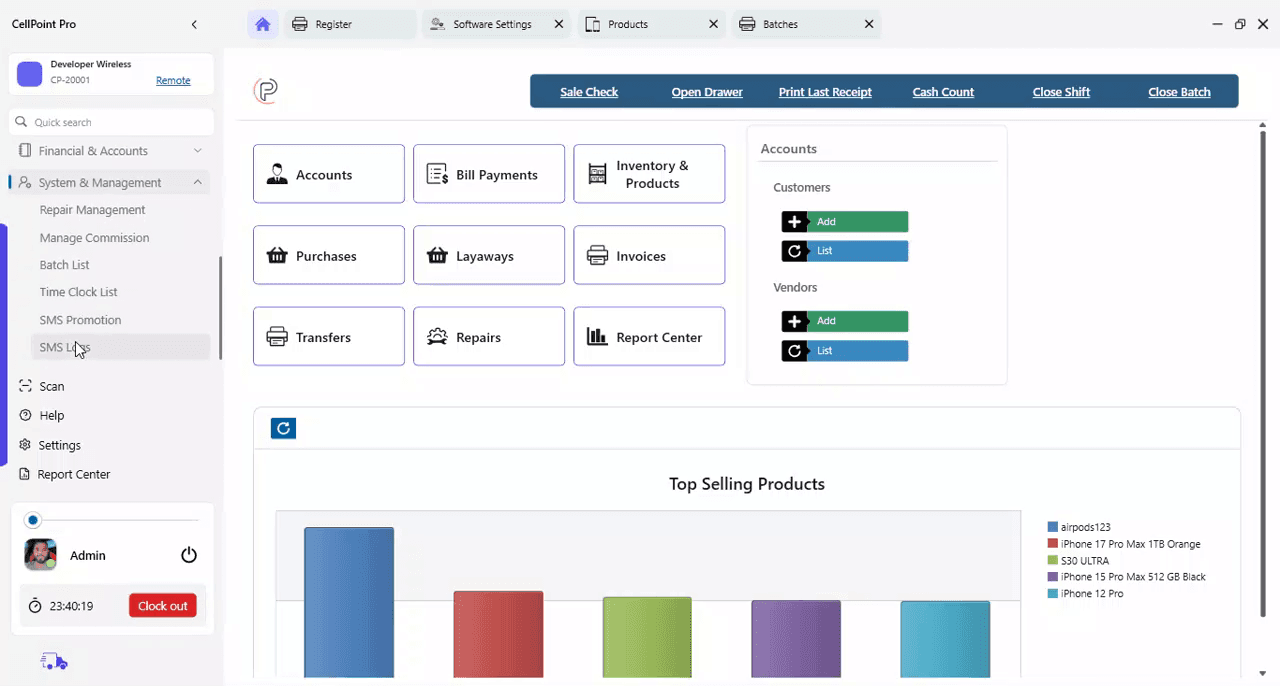
Then navigate to SMS Promotion.
Step 2: Load and Select Customers
Once the SMS Promotion screen opens, the complete customer list will be displayed.
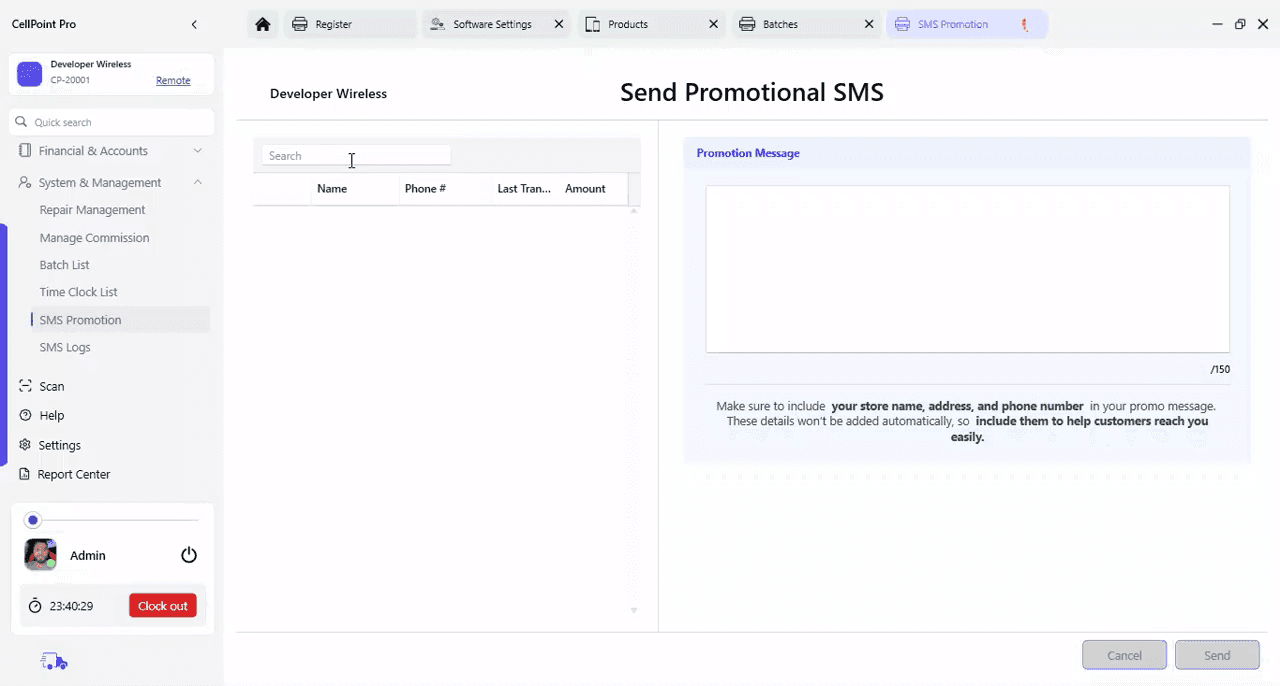
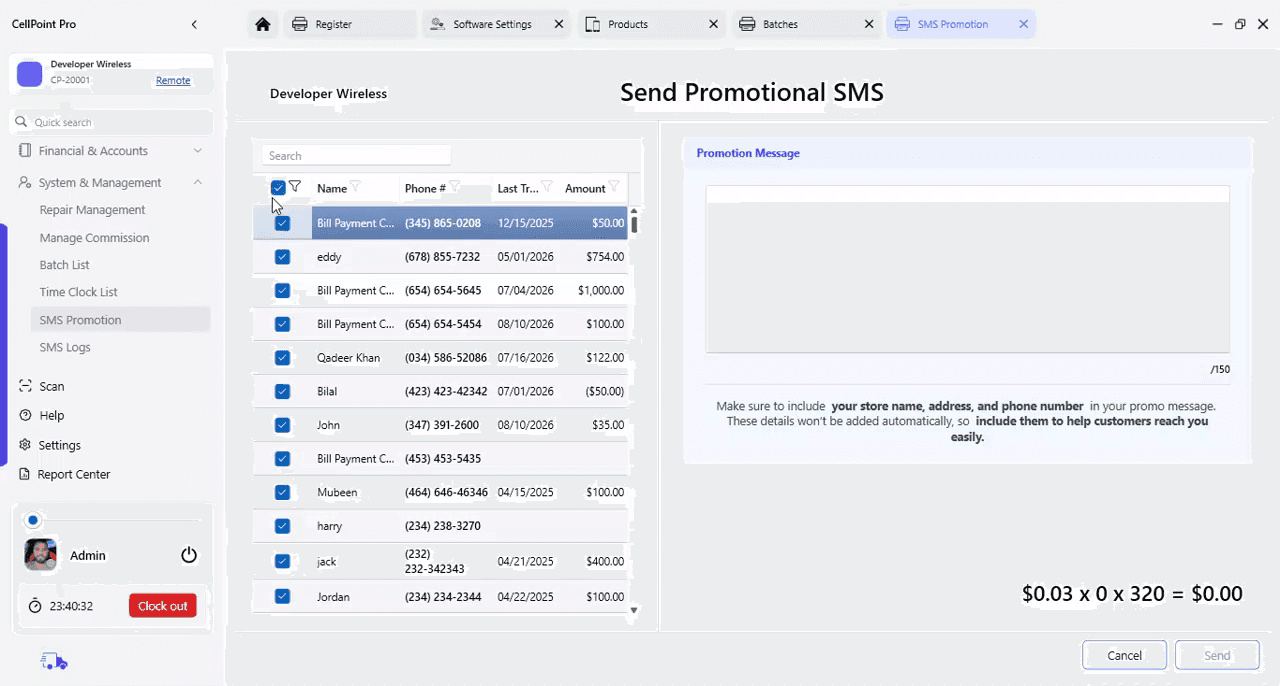
You can choose to select the entire list of customers for your promotional message.
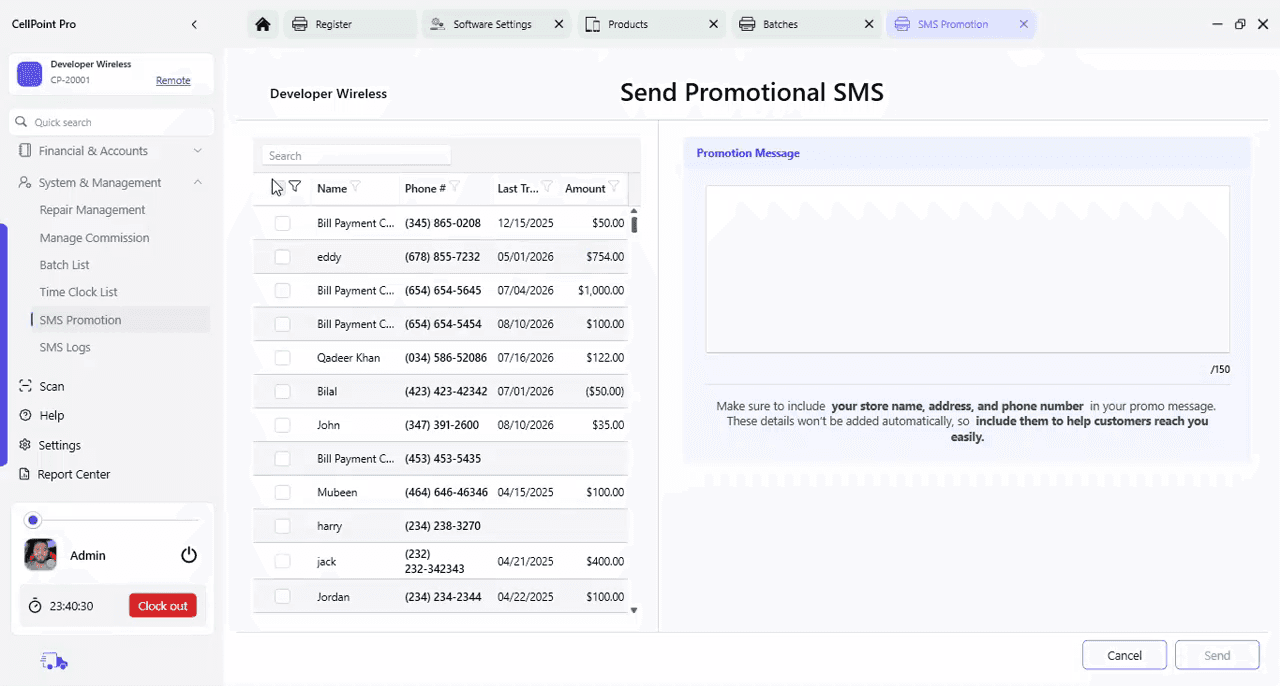
Use the selection options to include all customers as recipients.
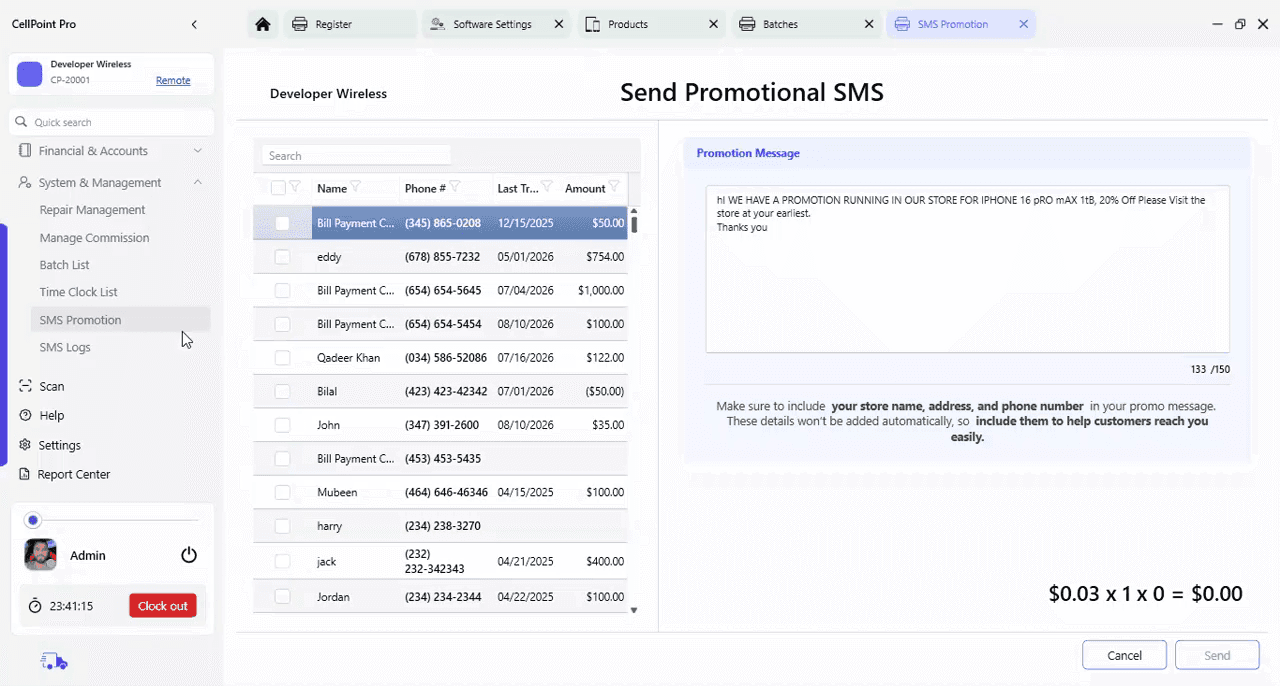
Step 3: Compose and Send the Promotional Message
Enter your promotional text message in the message field provided.

After finalizing your message, click Send Message to dispatch the SMS to the selected customers.

Step 4: Access SMS Logs
To review details of the messages sent, go to the SMS Logs section under System and Management in the left-side menu.
Step 5: Review Message Details in SMS Logs
In the SMS Logs section, you can review all SMS activity.
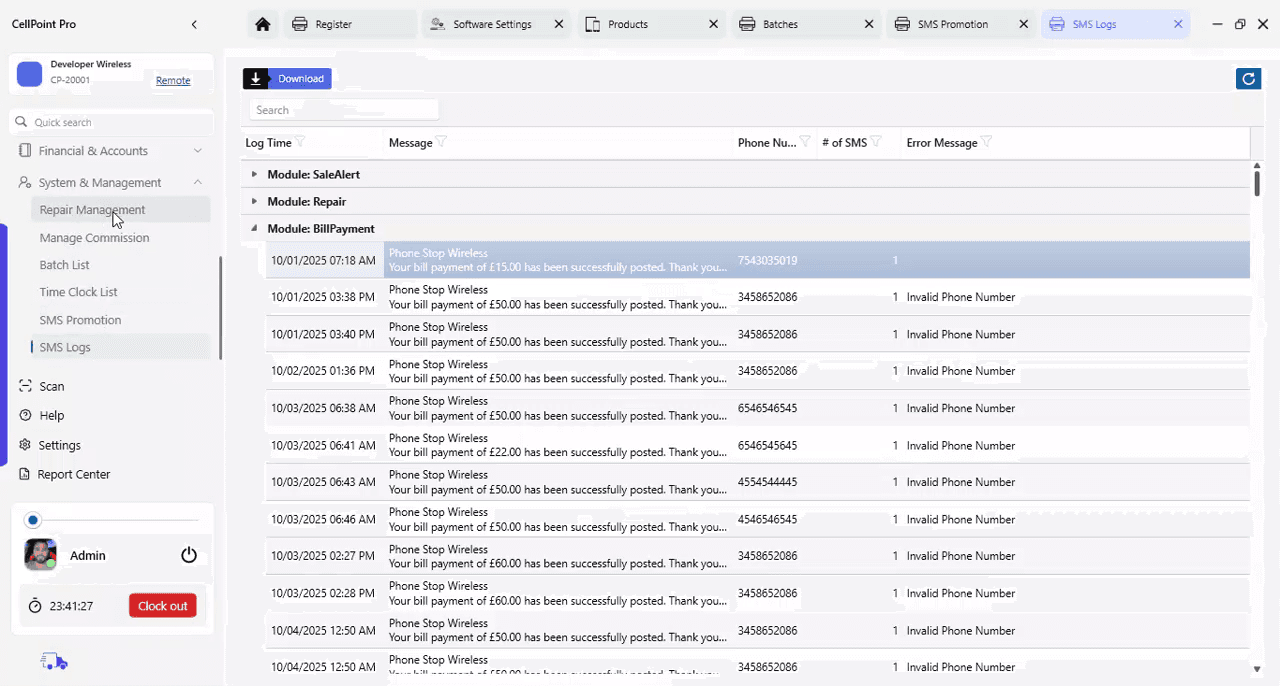
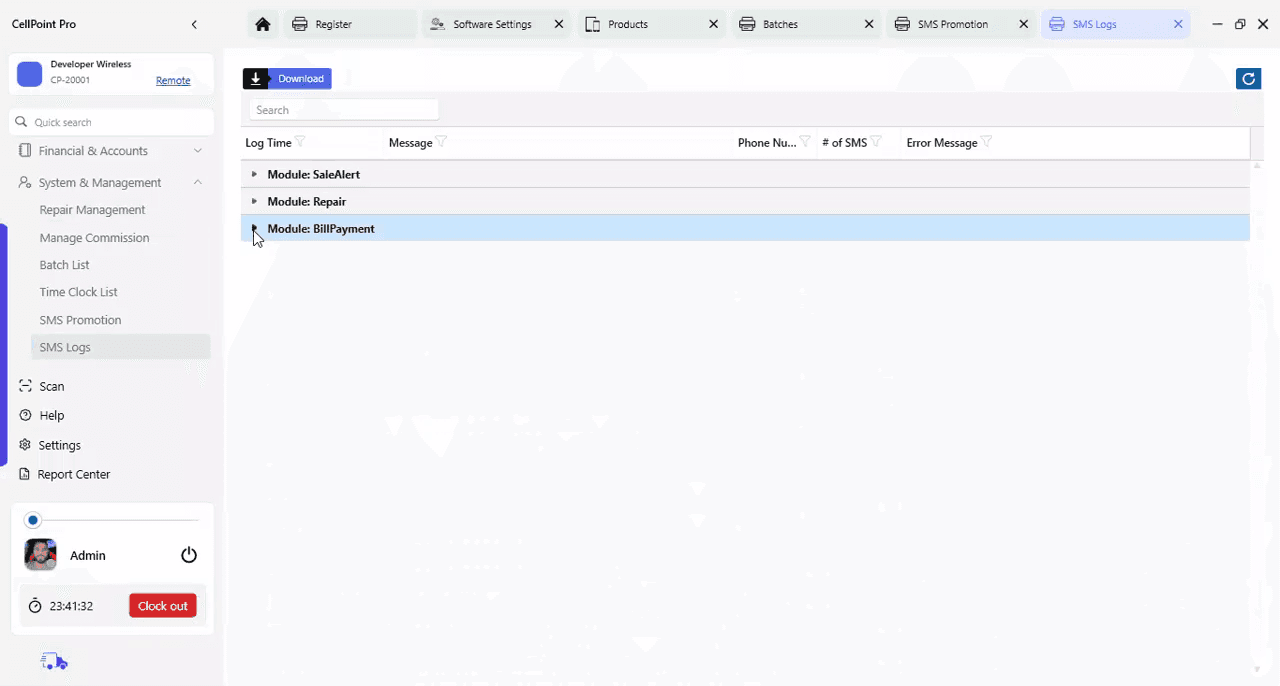
Here you can check the different messages sent through various modules,
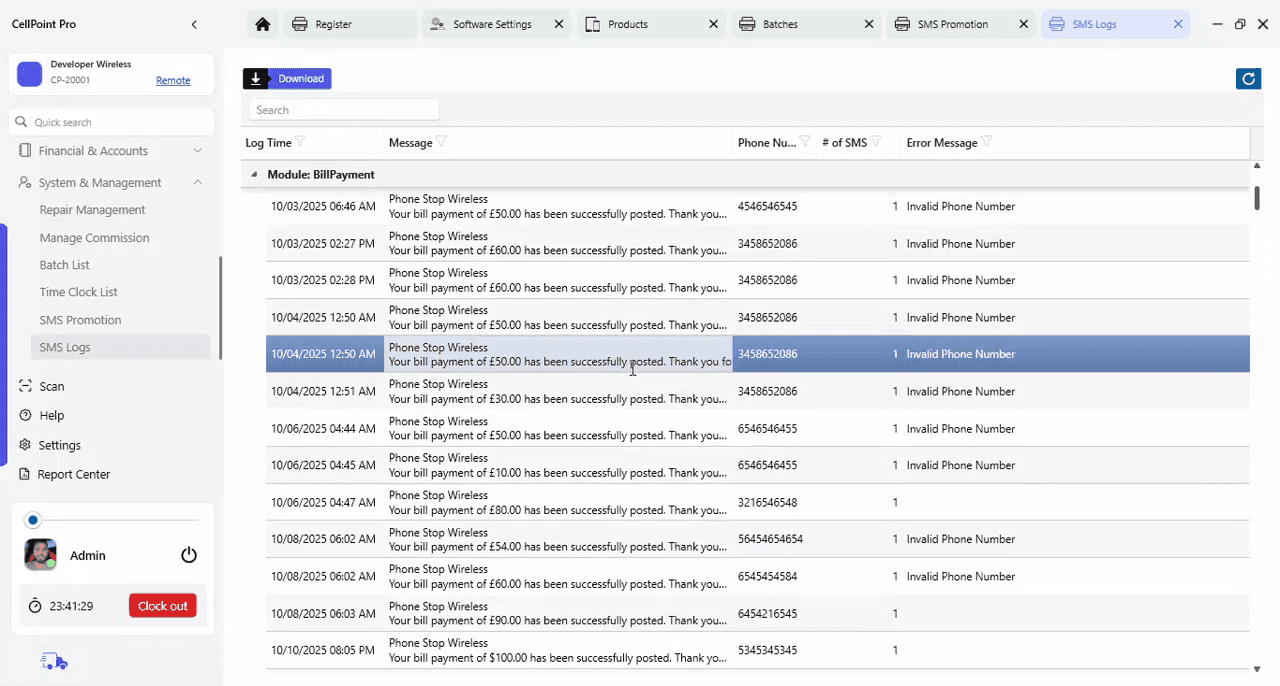
including a breakdown of individual messages,
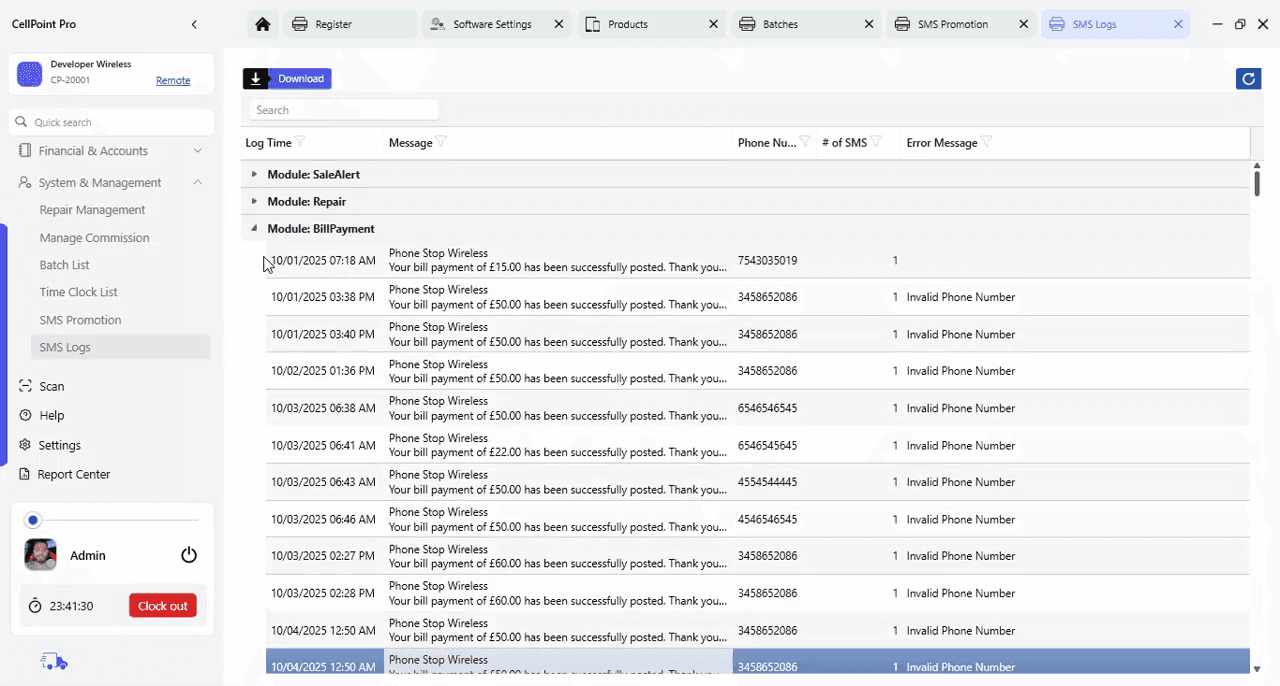
and any SMS sent via promotional campaigns will also appear in this list.
Watch the Video Tutorial
On This Page
Overview
Steps & Instructions
Video Tutorial