
Employees
·
Guide
1 Minute

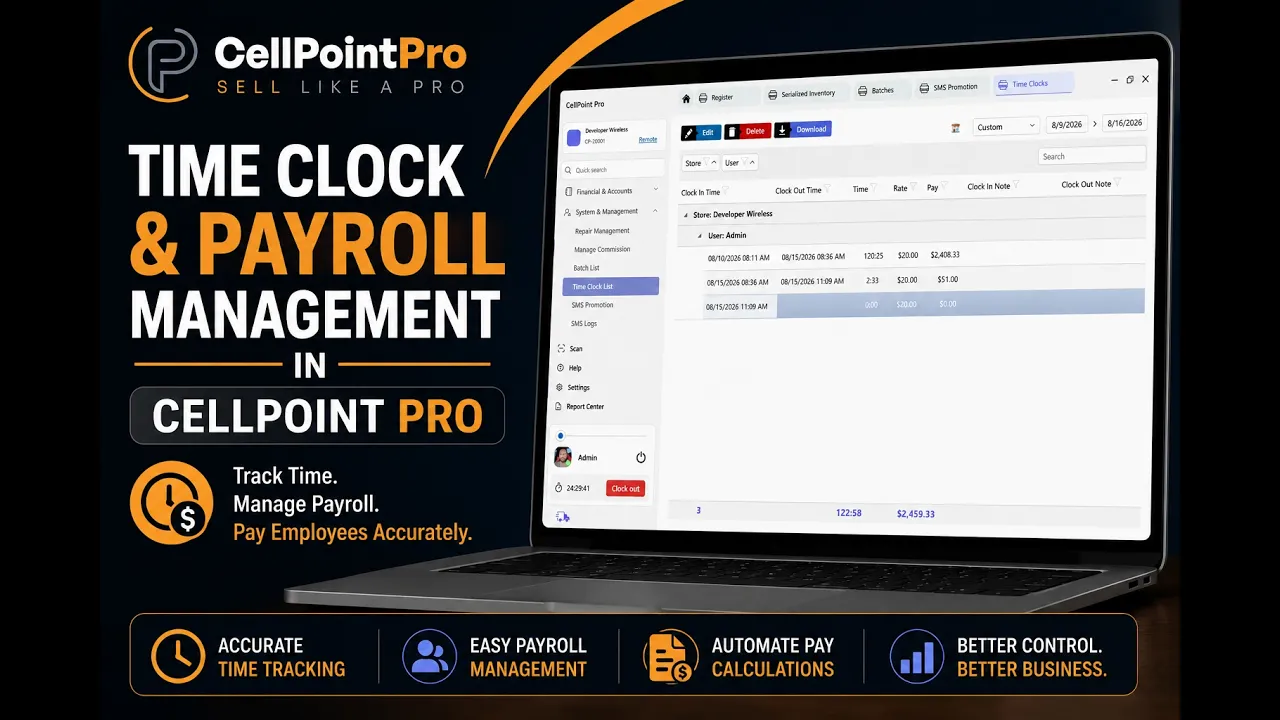
Viewing and Managing User Time Clocks and Payroll in CellPoint Pro
Use this process to review employee time clock entries, verify payroll calculations, and make any necessary corrections directly within CellPoint Pro.
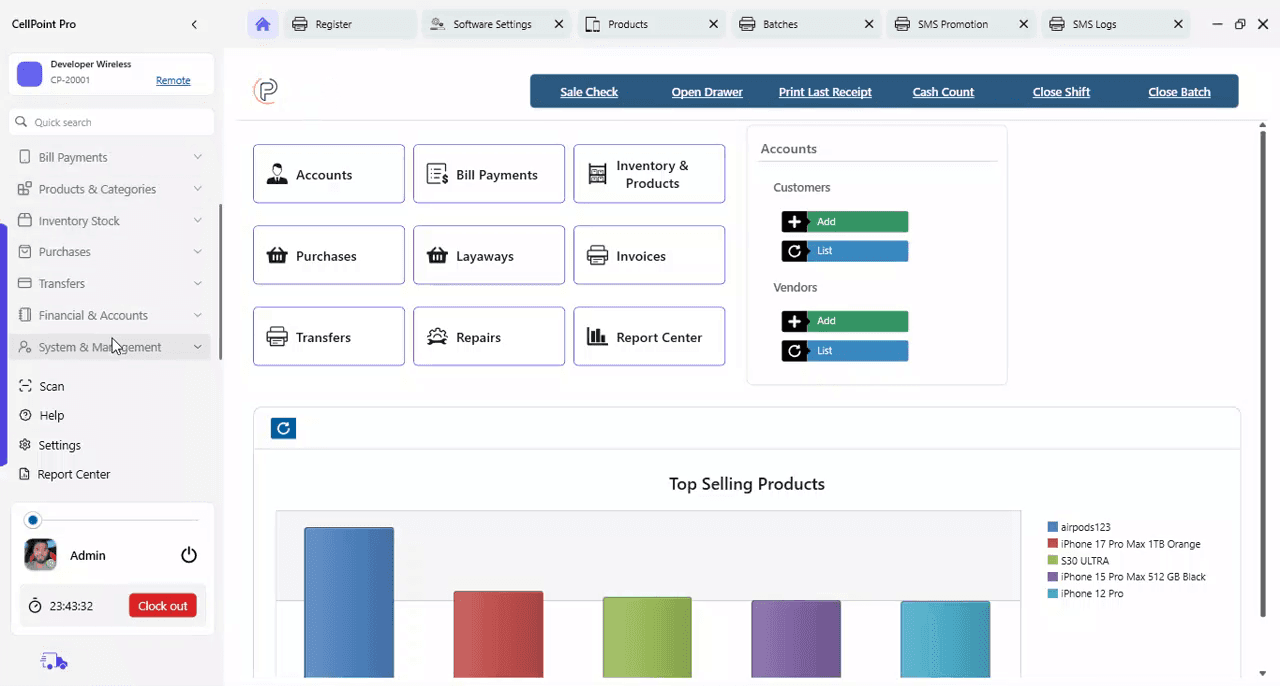
Step 1: Open the System and Management Menu
From the left-side navigation panel, go to System and Management.
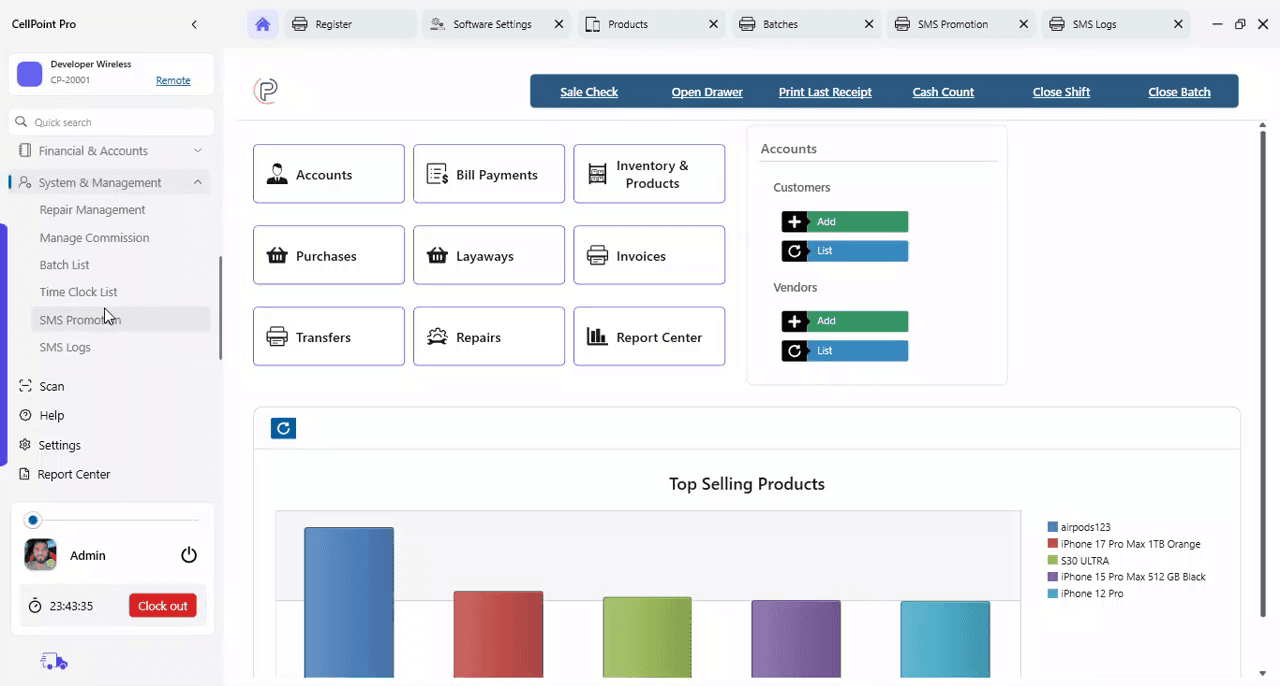
Step 2: Access the Time Clock List
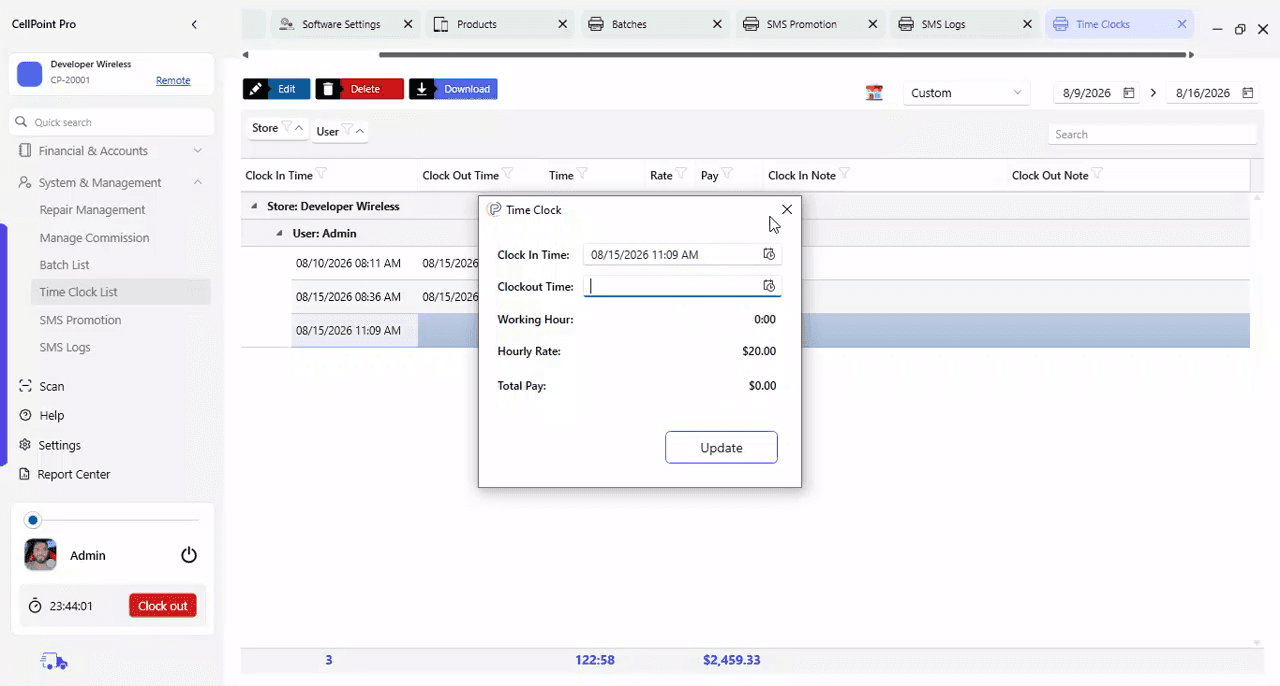
In the System and Management section, locate and select Time Clock List to open the detailed view of all user time clock entries.
Step 3: Review Time Clock Details and Payroll Calculations
In the Time Clock List, review each user’s clock-in and clock-out times, the total time worked, and the automatically calculated payroll amounts. These payroll values are based on the rate configured in each user’s profile.
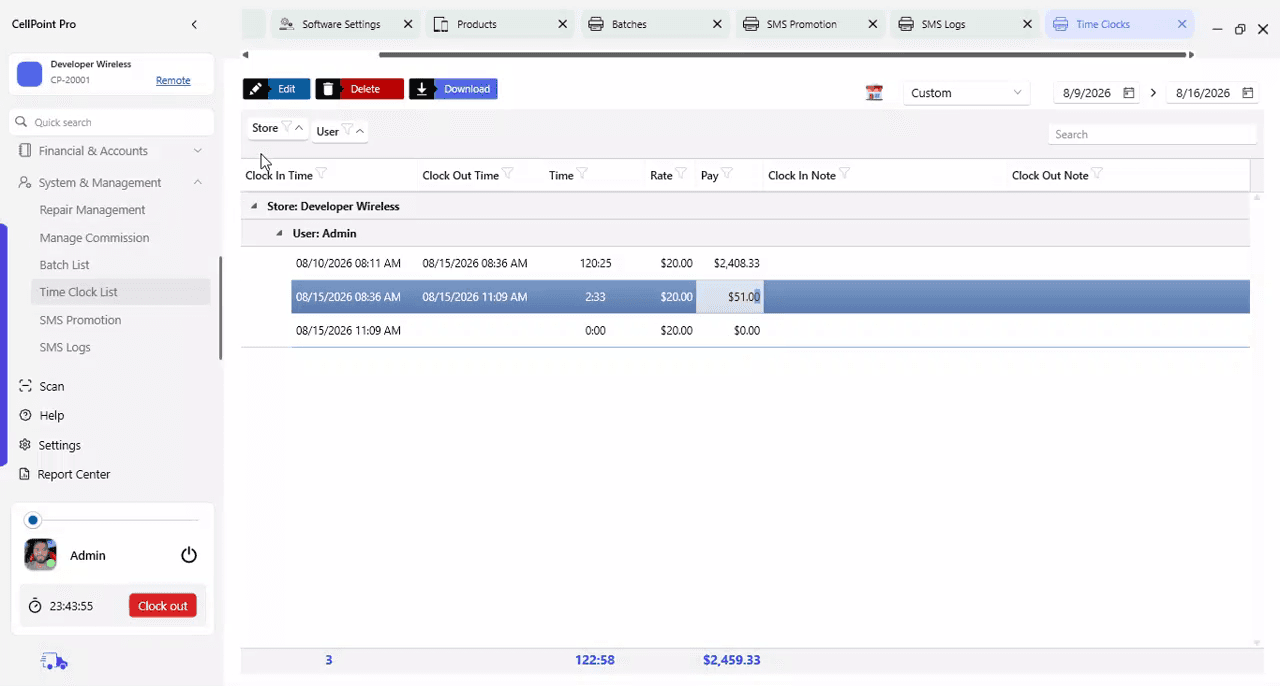
Step 4: Edit Time Clock Entries When Needed
If any time clock entry is incorrect (for example, a missed punch or wrong time), select the relevant record and edit the clock-in or clock-out time as needed. This ensures accurate time tracking and payroll for your store.
Watch the Video Tutorial
On This Page
Overview
Steps & Instructions
Video Tutorial